Events
Events
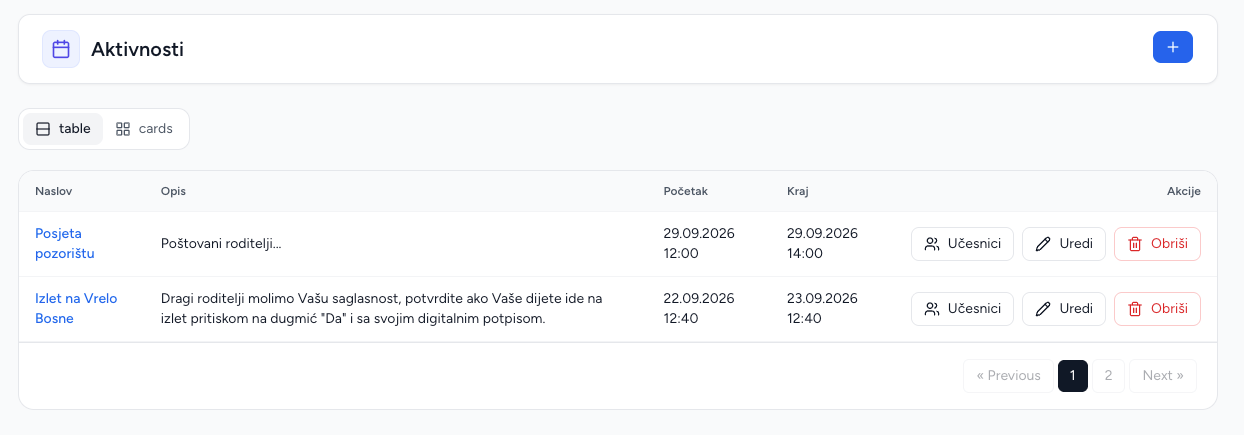
Events are date/time announcements targeted to one or more groups. They can include a description and image and trigger push notification delivery.
Create an event
- Open Events and choose Add event.
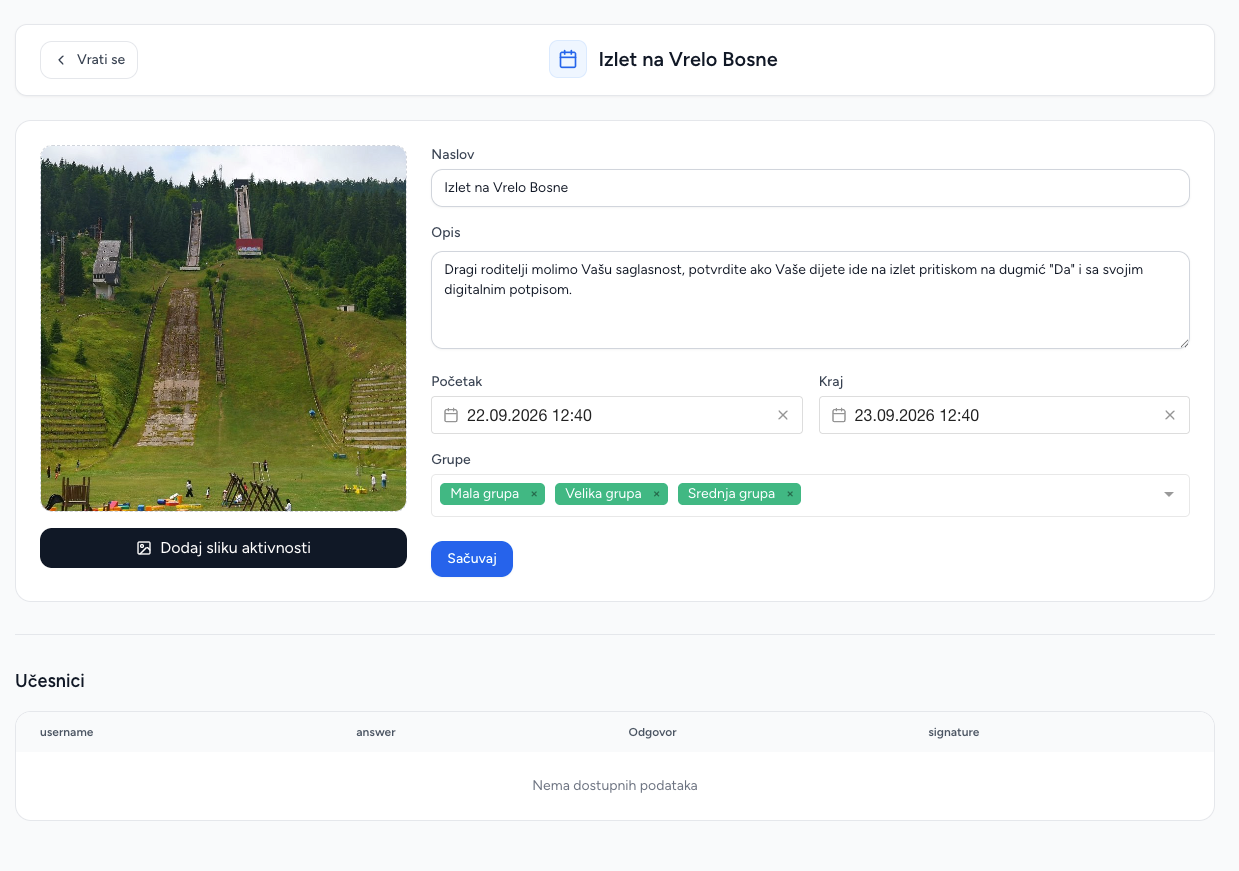
- Enter title and description.
- Set start and end date/time.
- Upload an optional event image.
- Select the groups that should receive the event.
- Save.
Only people in the selected groups can see the event in Brundo App. They receive a notification when it is published.
Edit and delete
Edit the content, times, image and group selection whenever details change. When changing groups, select every group that should continue to receive the event. Delete permanently removes the event.
Parent confirmation and signature
In Brundo App, a parent can accept or decline, add a response and optionally provide a signature. The event edit screen shows attendees, responses and signatures.
The confirmation flow is:
- Parent opens an event delivered to their group.
- Parent submits attending/declining plus optional answer and signature.
- The response and signature become available to your team.
- Brundo Admin opens the event's attendee section to review responses.
Parents can change their event response in Brundo App. Review the attendee list before finalising event arrangements.
Screenshots