Users
Users
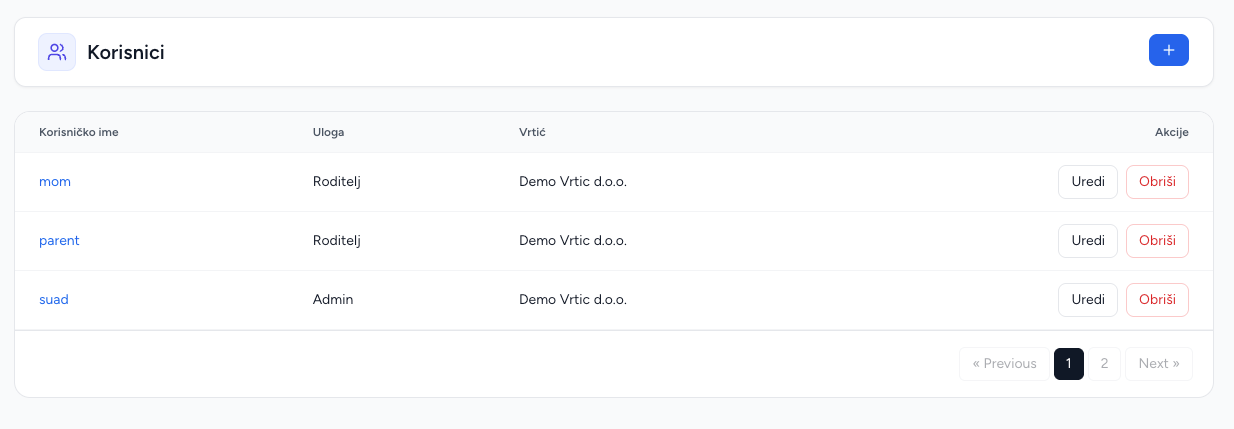
The Users module lists accounts belonging to the kindergarten and lets authorized staff create or edit them. It is different from the Super Admin-only global user list.
Create a user directly
- Open Users and choose Add user.
- Enter username and password.
- Select the account type.
- Select the kindergarten context and optional avatar.
- Save.
Account types
- Brundo Admin manages the kindergarten and its operational modules.
- Employee has operational access but fewer administrative options.
- Parent uses the Brundo App for child, event, absence, chat and content workflows.
Choose the account type that matches the person's responsibility. Platform-level administrator accounts are managed separately.
Parent-child links
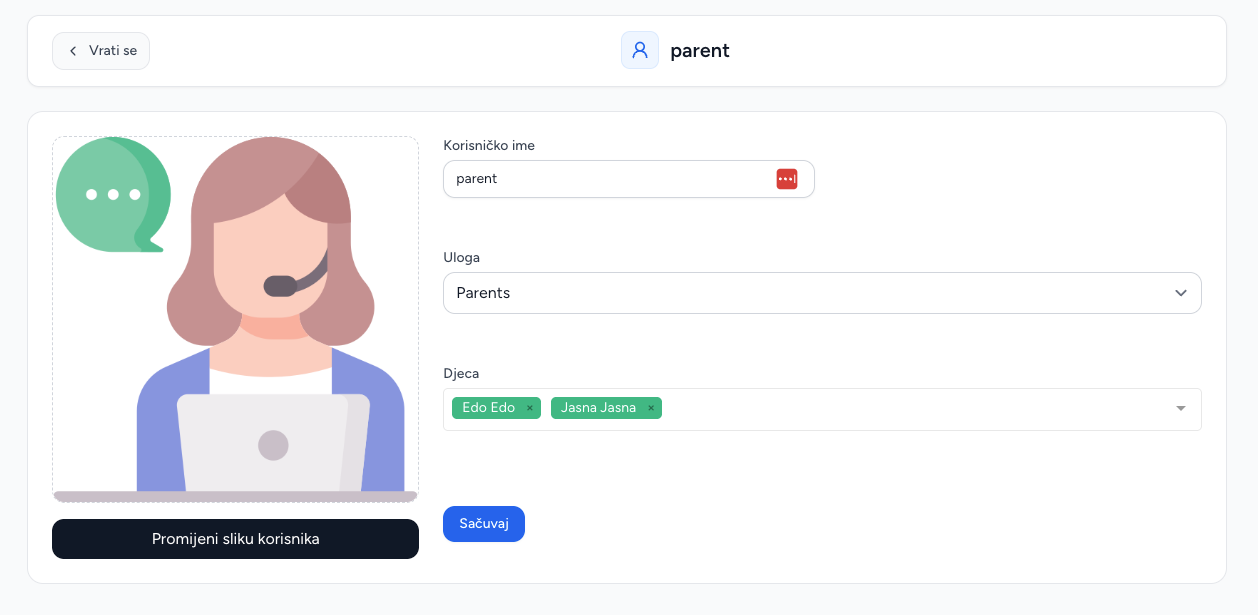
When editing a user, assign the relevant children where the form allows it. This relationship is used by mobile features such as child lookup, absence reporting, pickup context and parent event workflows.
Password requests
Parents/employees can request a password reset from the Brundo App. The request appears in the Brundo Admin dashboard count. An administrator can open the password-request workflow, generate or enter a reset code, and provide it to the user through the approved support channel.
Deleting and changing account types
Deletion is permanent and may affect group memberships, child relationships and event participation. Before changing an account type, confirm that it matches the person's responsibility and that their groups and child links remain correct.
Screenshots